Should a Snap-In Capacitor Dummy Pin Be Connected to the PCB?
Do not assign an electrical net to a snap-in capacitor dummy pin unless the exact COREVIA drawing identifies it as active. Review the footprint before release.
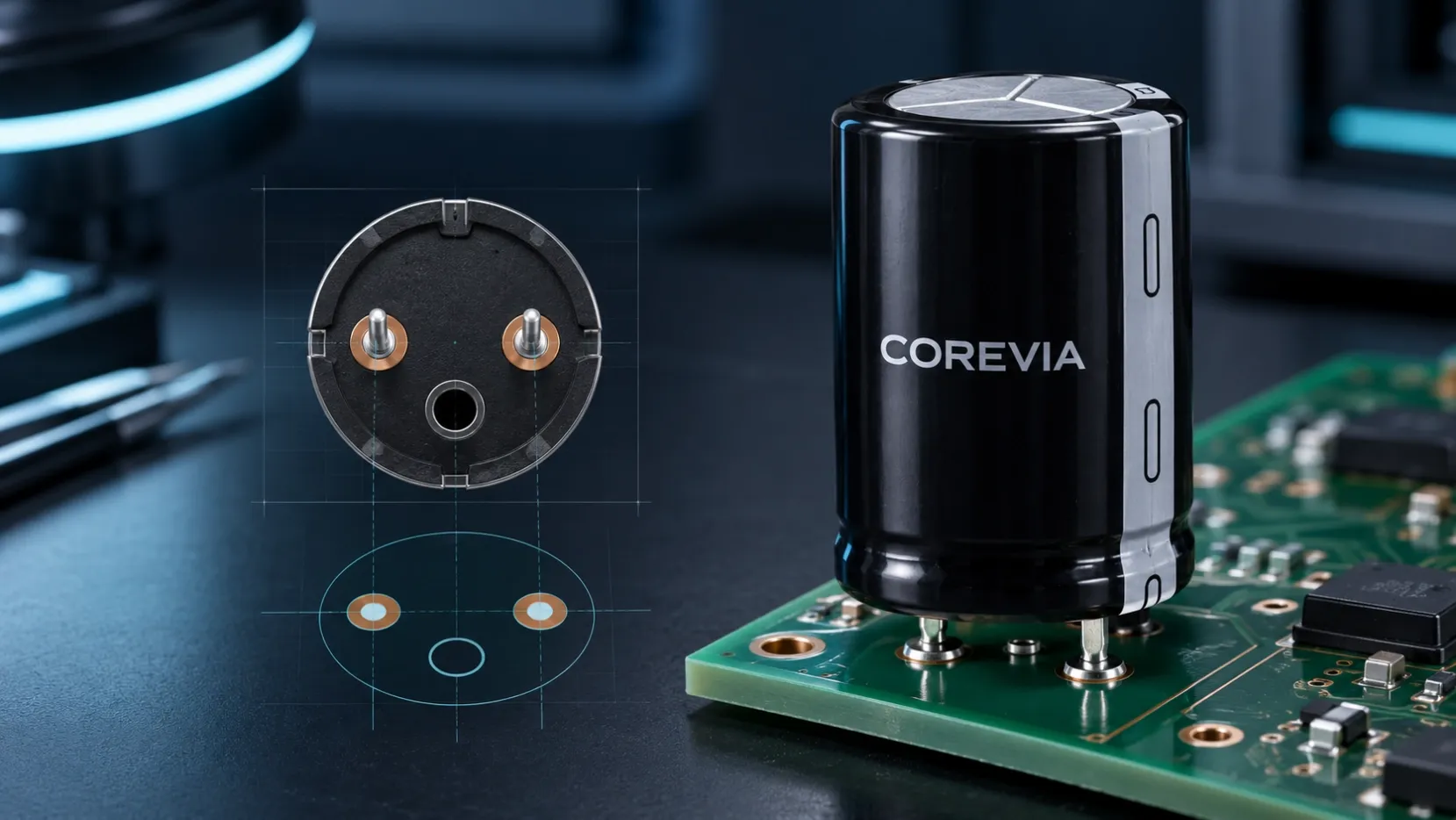
Do not connect a snap-in aluminum electrolytic capacitor’s dummy pin to an electrical net unless the exact COREVIA drawing identifies that feature as an active terminal. A dummy pin or auxiliary mounting feature may help locate or retain the component, but it is not automatically part of the positive or negative connection. Match the PCB footprint to the selected part number before releasing the board.
This check matters because snap-in capacitors can look similar while their terminal arrangements differ. A footprint copied from another case or series can place copper under a mechanical feature, misidentify polarity, or prevent the capacitor from seating correctly.
How can you identify an active terminal and a dummy pin?
Start with the dimensional drawing for the exact COREVIA part number. The drawing should be the controlling source for terminal count, polarity, hole positions, lead dimensions and any non-electrical mounting feature. Do not decide from appearance alone.
For an active terminal, the drawing and polarity marking identify its electrical function. For a dummy pin, the drawing may show a mechanical position without assigning positive or negative polarity. If the drawing is unclear, stop the PCB release and ask COREVIA to confirm the terminal layout in writing.
COREVIA’s snap-in range includes the SP, SH, SS, SC, SF, SU, SD and SZ series. These family names help narrow the search, but the complete part number and its current drawing are still required because case and terminal options can vary. Review the COREVIA snap-in terminal capacitor range for product-family context.
What should the PCB footprint review include?
Review the footprint as a mechanical and electrical interface, not just as a hole pattern. The capacitor should enter the board without forcing the leads, and the intended active terminals must land on the correct nets.
| Review item | What to confirm | Release decision |
|---|---|---|
| Exact drawing | Part number, case option and terminal layout match the approved component | Do not reuse a similar-looking footprint without comparison |
| Active terminals | Positive and negative positions match the schematic and PCB nets | Verify polarity before fabrication |
| Dummy feature | No electrical function is assigned unless the drawing explicitly states one | Keep it electrically isolated when it is mechanical only |
| Hole geometry | Hole position and size follow the current dimensional drawing | Avoid bending or forcing terminals during insertion |
| Copper and clearance | Pad, trace and plane locations suit the identified terminal function | Do not place an unintended net at a mechanical hole |
| Assembly inspection | Body seating, polarity, solder joints and board strain are acceptable | Approve the actual production assembly, not only the CAD file |
Before production, compare the schematic, footprint library, fabrication data and first assembled board. If the dummy feature is soldered for mechanical retention, its pad must remain electrically isolated unless the product drawing says otherwise. Soldering a mechanical feature does not convert it into a positive or negative terminal.
What should an OEM send COREVIA for footprint confirmation?
Send the complete COREVIA part number, the latest component drawing, PCB footprint image, hole and pad dimensions, polarity orientation, schematic net names, board thickness, soldering process and photographs of the first assembly. State whether the questioned feature has copper, a solder pad or an electrical net.
Also include the application type and operating conditions so the footprint review stays connected to the electrical and thermal selection. For power-conversion context, see the COREVIA industrial power supplies application page. Then contact COREVIA with the exact drawing and PCB files for an application-focused review.
FAQ
Can I connect the dummy pin to the negative terminal?
Not by assumption. Connect only terminals whose electrical function is identified on the exact COREVIA drawing. Keep a mechanical-only feature isolated from every net.
Can I omit the PCB hole for a dummy pin?
Do not omit it without checking the approved mechanical drawing. A dummy feature may be needed for locating or retaining the component, and removing its hole can prevent correct seating or add stress during insertion.
Does soldering a dummy pin make it electrically active?
No. Solder can provide mechanical retention, but it does not define electrical polarity or circuit function. The component drawing and approved footprint determine whether the feature is electrical.
Preparing a new snap-in capacitor footprint? Send COREVIA the exact part number, drawing and PCB footprint before board release.